
Development
Googlebook review: Android on a laptop is still Android
October 16, 2026 Development Source: Ars Technica
Share this article


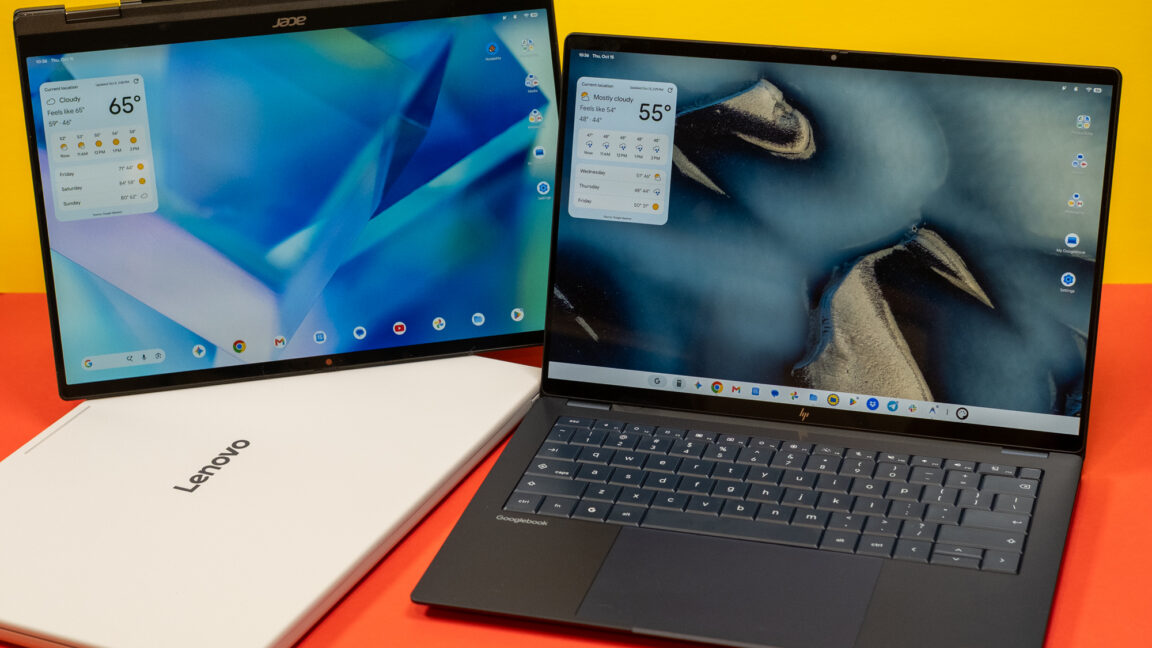
There’s something in the lineup for most premium laptop buyers. If you want a convertible, there’s the Acer machine. Sleek and spendy? Asus and HP have you covered. Want something a little bigger? Lenovo has a 15.3-inch model with an HDMI port and USB-A.
All of the launch Googlebooks have the same keyboard layout, which is a bit different from what you get on other laptops. There’s a G button that works similarly to the Windows button, and the top F-row has been revamped. You get the usual Windows staples like brightness and volume control, but there are also Android navigation buttons and a voice input key that activates the AI-powered Rambler.
Setting up a Googlebook is a snap for Android users. Just like configuring a new phone, you can scan a QR code with your current phone to copy your accounts, data, and apps over automatically. You can be up and running in minutes, and your phone will integrate deeply with the OS. Well, provided it runs Android 17. That’s going to be a sticking point, since most phones don’t have that update yet.
With Google’s “Better Together” services, a Googlebook can access files on your Android 17 phone, sync notifications, remember where you left off in apps, and even mirror apps from your phone. This all sounds great, and when it works, the experience can be good. However, there are various limitations and bugs that get in the way.
Google has at least done a good job of making Android look like a desktop OS. There’s a proper desktop that you can fill with app shortcuts, folders, widgets, and files. There’s a folder in the storage tree where you can manage that content, or you can simply drag things onto it from a file manager. You also get ChromeOS-style split-screen support and multiple desktops. These features work, but they’re not as intuitive or capable as what you get on either macOS or Windows.
Create My Widget is another head-scratcher, though. The pitch is that you can simply describe the widget you want, and the AI will place it on your desktop. It sounds cool, but in reality, the content you can rope in is so limited as to make the feature largely useless. If you want calendar countdowns and sports scores, great. If you want system info or app content, you’re out of luck.
Googlebooks come with the Play Store, which is crammed full of all the Android apps you could ever want. But desktop apps? Google says it has worked with devs to optimize apps for Googlebooks, and some software has been newly built from the ground up for a desktop experience. For example, Chrome on Googlebooks is a mostly desktop-class experience. It’s missing a few niche features like split windows, tab groups, and multiple profiles, but it will work with all of your extensions.
On other platforms, I’ve routinely used desktop clients for Dropbox and Drive to sync files. I had hoped something similar would be possible on these Android laptops, but no such luck. Dropbox runs on a Googlebook, but it’s not optimized. The UI is clunky, and even if you save a folder offline, it only updates when you refresh the app manually (just like a phone running the app).
Drive isn’t the only Google web app masquerading as a native app. Gmail and Calendar are also PWAs on the Googlebook, offering the same experience you’d get opening them in a browser tab. Gmail exists as an Android app with a large screen format. Why not adapt that for Googlebooks? Real operating systems have email apps. If you’re just going to end up in a web app, why not buy a Chromebook for a third of the price?
The Play Store uses labels to let you know which apps are best on a laptop, but most apps in the Play Store are very obviously built around a phone experience. Google is in a tough spot here. Developers only build for what people use, and so far, no one has been demanding desktop-style Android apps. As you peruse the Play Store, you’ll see a few of those “optimized” labels, but there are many more “Compatible with desktop” tags, which means you can expect only nominal support for a keyboard and mouse.
The most problematic apps are flagged in the Play Store as “Built for mobile” or even “Better on the website.” Some popular apps fall into these categories. For example, team chat app Slack is an abysmal experience on anything other than a phone. The app runs on Googlebooks, but the web UI is much more desktop-friendly. You are supposed to be able to install Slack as a progressive web app, essentially what Google is doing with Gmail, Drive, and other apps. However, this doesn’t work currently for unknown reasons. Again, you could just use a Chromebook if you wanted everything in a browser tab.
You’ll find lots of pbone-first apps that don’t fully understand that you have a trackpad, ignoring hover interactions and right-clicks. Many apps also expect you to frequently trigger the Android back gesture to navigate the UI. On that last count, Google has a solution. Googlebooks have Back, Home, and Multitasking buttons on F1-F3. So you can make phone apps work, but reaching up to mash F1 constantly is annoying.
The Android lineage of Googlebook OS also means that even apps built for desktop may not operate the way you’d expect on a desktop PC. Android was designed for a memory-constrained environment, so the system closes apps in the background whenever it needs to free up RAM. It’s common to come back to an app you left in the background to find that it has lost your place and has to reload. This is a phone-like experience that doesn’t really fit with a real computer.
After struggling with the Files app for a few days, I decided the lack of network shares was a deal-breaker. I keep most of my files on a NAS so I can access them from any device, and Googlebooks were cramping my style. I first tried to find an alternative in the Play Store, but the apps with sufficient features were totally unoptimized for a laptop, so I decided to test Antigravity on Googlebooks by making one.
Using Google’s default Gemini Flash model, I was able to get a functional but very buggy file manager installed in a few minutes. Making it work reliably and support all the features I needed took several hours of prompting over a few days, but the result is something I like using more than Google’s default Files app.
My custom file manager is essentially Windows Explorer on Android. While I did not set out with that intent, that’s where I ended up. The app has a desktop-friendly UI, tabs, network share support, expandable file trees, file previews, and more buttons. It has more features than Google’s default app, although it lacks the deep phone and system integration of the default file manager.
I keep coming back to one inescapable question that hangs over everything Google is doing with these new laptops: Do Googlebooks need to exist? This seems like a lot of effort just to deliver deeper Android phone integration and more AI features when Chromebooks are already established in the market. True, that’s not a premium part of the market, but going after premium laptops means you need a premium experience, and currently, Googlebooks don’t offer that.